
Create a readable contact sheet from a photo shoot so you can compare candidates, mark selects and keep the review separate from the final edit.
Prepare a review set, not the whole camera roll
Choose one shoot, one scene or one decision. Importing every frame makes the contact sheet slow to read and hides the useful differences. Start with a sequence of candidates that share a subject and lighting. Keep rejected frames in the original folder, but do not place them on the review sheet unless the reason for rejection is part of the discussion.
Rename or note the sequence before arranging it. A simple order such as 001, 002 and 003 is more useful than a visual collage with no way to identify the source. Collage Easy’s export is a review image; keep a separate list that maps each tile to its original file.
- Select one coherent scene or decision.
- Keep a source order and record filenames.
- Separate review candidates from rejected frames.
Choose a grid that keeps differences visible
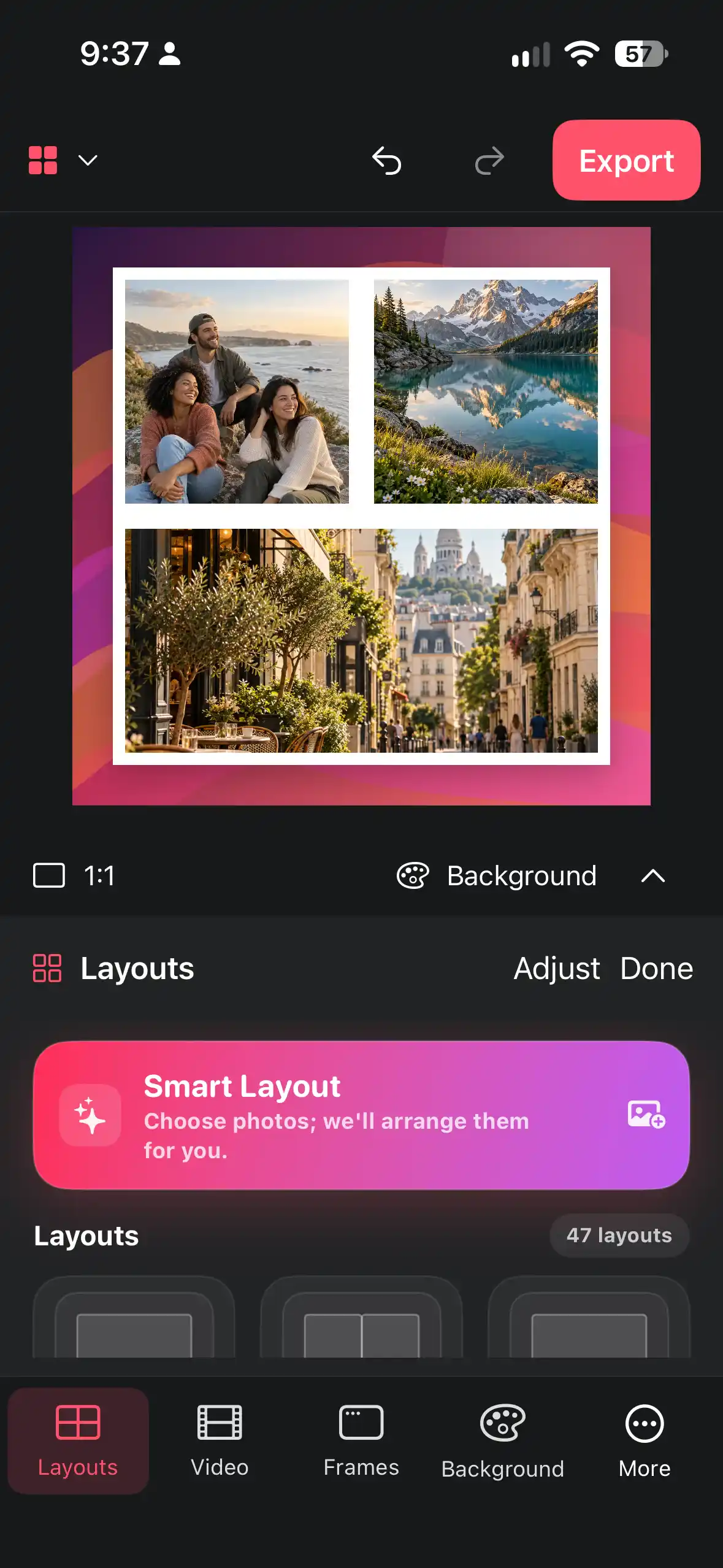
Use an equal grid when the purpose is comparison. Smart Layout can help you start, but equal tiles make it easier to compare eye direction, horizon, gesture and focus. Four to nine tiles per page are comfortable for a detailed review; more can work for a quick overview if the images remain identifiable.
Set the canvas before fine cropping. A portrait sheet suits headshots, while a landscape sheet can give environmental frames room. Keep the same subject scale where possible, but do not crop away the detail you are reviewing. If focus or hand position matters, the relevant area must remain visible.
- Choose equal tiles for a comparison sheet.
- Select a canvas shape suited to the shoot.
- Keep the reviewed detail visible in every crop.
Label without covering the photograph
Put short identifiers below or beside the image: filename, frame number or a one-word note such as “blink” or “best light.” Do not write an unverified quality judgment into the filename. If a client is reviewing the sheet, labels reduce the risk that feedback refers to the wrong frame.
Use one text style and a quiet background. A coloured sticker can flag a candidate for a private edit, but it should not be mistaken for a final retouch or approval. Keep annotations separate from the photo area so the image remains honest.
- Use short, stable identifiers.
- Keep text outside the reviewed image area.
- Reserve colour or stickers for explicit review markers.
Review in passes
First pass: remove technical failures such as missed focus, accidental eyes closed or unusable motion. Second pass: compare expression, composition and relationship to the brief. Third pass: choose a small group for editing. Do not try to judge colour, sharpness and emotional fit in one glance. A contact sheet is strongest when each pass has one question.
Invite a second viewer only after you have made your own notes. Ask them to name the frame number and the reason they prefer it. Different opinions are useful when they are attached to identifiable frames, not when the sheet is a vague wall of images.
- Mark technical exclusions.
- Compare candidates against the brief.
- Choose a shortlist and record why.
Share a review safely
Before sending a contact sheet, check that it contains no private people, unreleased work or metadata you did not intend to share. Use a modest export for discussion and retain the full-resolution originals privately. The sheet can carry a review label such as “proof for selection,” making it clear that it is not the finished photograph.
Ask for feedback in a format that can be acted on: “choose up to three frames and note one reason.” If a client asks for a crop or retouch, keep that request with the original filename. Collage Easy arranges the review; it does not replace your source archive or approval process.
- Check privacy and review status.
- Label the export as a selection proof.
- Collect feedback by frame identifier.
Keep the sheet useful after the decision
Save the contact sheet with a date and project name, then keep the source mapping beside it. When the final edit is delivered, the sheet can show how the selection was made without pretending that every candidate was published. If the shoot is revisited, you can create a new sheet from the same source folder.
Collage Easy is free to download and current product materials describe a free core editor, while Pro unlocks premium tools and unlimited 4K exports. Check the current in-app terms before promising a high-resolution proof. For most selection conversations, clarity and correct identifiers matter more than a large file.
- Save with project and date.
- Keep the filename mapping with the sheet.
- Recheck current export terms before a high-resolution proof.
Frequently asked questions
What is a photo contact sheet?
It is one review image containing several source photographs in a consistent grid, usually with identifiers so candidates can be compared and discussed.
How many photos should be on one contact sheet?
Four to nine tiles are comfortable for detailed review. Make an overview and a detailed sheet instead of making every tile too small.
Does a contact sheet replace the original photos?
No. It is a review export. Keep the original-resolution files and a mapping from each tile to its source filename.
Can I send a contact sheet to a client?
Yes, after checking privacy, rights and review status. Label it as a selection proof and request feedback by frame identifier.
Can Collage Easy make a high-resolution proof?
Check the current export screen and Pro conditions in the app. The product materials describe unlimited 4K exports as an optional Pro condition; do not assume every export is free.
Learn the Tricks
Step-by-step guides for collages, screenshot mockups and video collages.
