
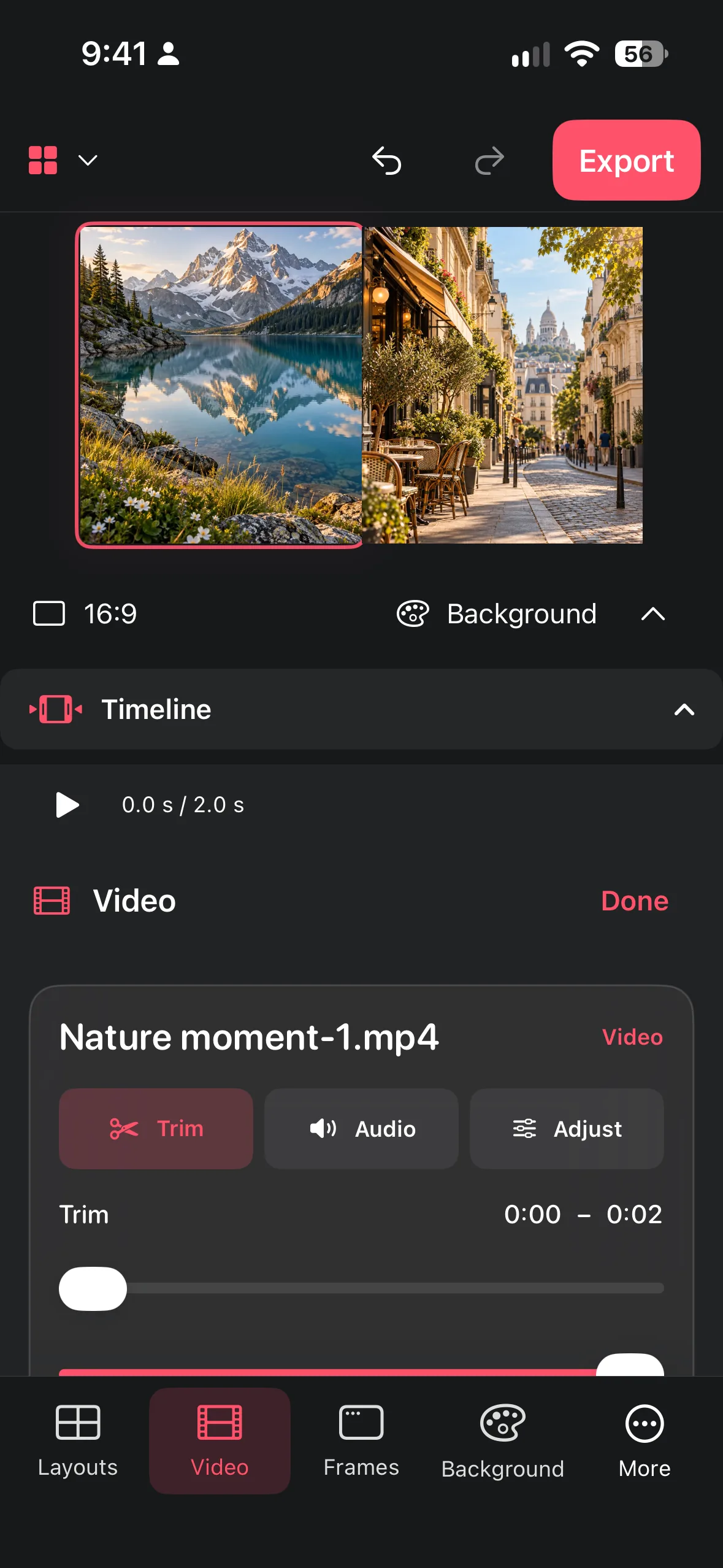
Combine short clips, trim their starts and ends, adjust speed and volume, and export a readable video collage.
Plan the sequence
Choose clips that share a moment, place, or purpose. Remove duplicates and clips whose first seconds are only setup. Put the clearest establishing shot first, then alternate detail and action so the viewer can understand the sequence. Short clips are easier to compare than long, unrelated recordings.
Add the clips to a video collage and watch the first pass without editing. Notice where attention drops, where two clips repeat the same action, and whether the order tells a story without explanation.
- Select a small set of related clips.
- Place the clearest context first and the strongest payoff last.
- Watch the unedited sequence once before changing controls.
Trim timing and control speed
Trim the beginning until the useful action starts, and trim the end immediately after the action finishes. A pause can be useful when it creates emphasis, but dead air repeated in every tile makes the collage feel slow. Keep neighboring clips at a similar energy unless a deliberate contrast is the point.
Use speed adjustment to clarify a long process or give a short gesture room to read. Check the result after every speed change: fast footage can make movement confusing, while slow footage can expose camera shake. Do not use speed as a substitute for a better trim.
- Trim setup and trailing pauses.
- Change speed only where it improves comprehension.
- Replay transitions and check that actions do not jump unexpectedly.
Make volume intentional
Decide whether sound is part of the story. Keep useful natural audio when it identifies an action or place; lower it when clips have incompatible noise. Mute a clip when its hiss, conversation, or sudden peak distracts from the visual. Collage Easy provides volume adjustment and mute controls for this purpose.
Do not assume the viewer will hear every detail. Many people watch shared videos silently, so the sequence should remain understandable without audio. This workflow uses the clips' own audio: keep it, lower it, or mute it.
- Listen through the full sequence with headphones if available.
- Lower or mute clips that compete with the visual story.
- Watch once with sound off to check visual clarity.
Export and troubleshoot the MP4
Preview the complete collage before export, including the final second. Check that the first frame is intentional, no clip ends mid-action, and the chosen format suits the place you will share it. Export as MP4 when the preview is ready, then inspect the saved file rather than relying only on the editor preview.
If a clip appears missing, check whether it was trimmed to zero or whether its source was moved or unavailable. If the result feels jerky, review aggressive speed changes and transitions. If the file is hard to read, simplify the sequence or choose a larger, more suitable canvas format. Current paid conditions and export options are governed by the in-app UI and App Store listing.
Read next: how to make a 9:16 video collage
- Review the full timeline and the final frame.
- Export the MP4 after the preview is approved.
- Open the saved video and check playback, sound, and the intended destination.
Frequently asked questions
Can I trim only the start or end of a clip?
Yes. Use the clip timing controls to remove setup or trailing pauses, then replay the transition.
Should I mute every clip?
No. Keep sound when it helps the story, lower mismatched noise, and mute distracting clips.
Does each clip keep its original sound?
Yes. Each clip keeps its own audio unless you lower its volume or mute it. Check the app for any additional audio options.
Make a collage from your photos
Explore Collage Easy for iPhone, iPad and Macs with Apple silicon.
