
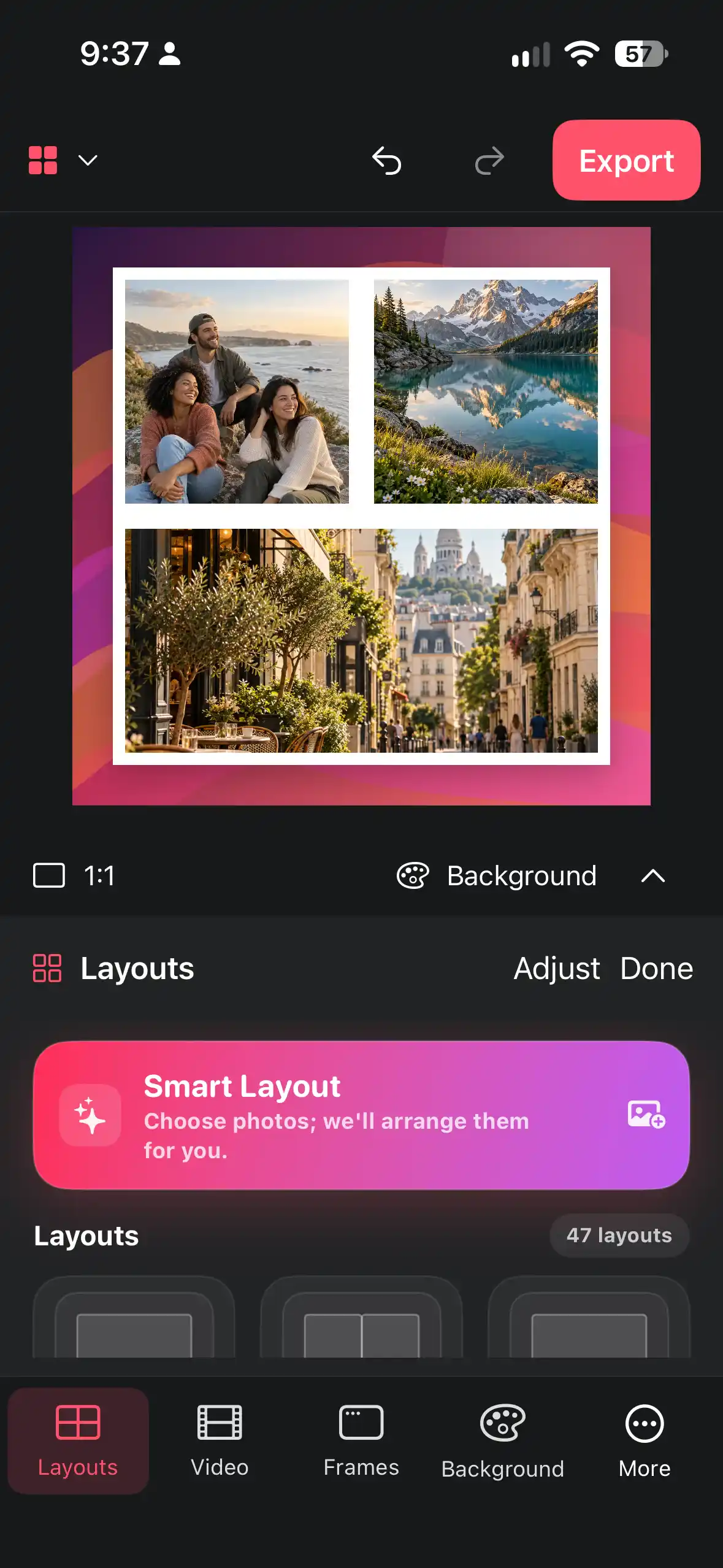
Plan square, portrait, or landscape work around its destination so the saved collage keeps its subject, spacing, and readability.
Start with the destination
Ask where the finished image will be used: square grid, portrait story, landscape presentation, or private saving. The destination sets the canvas shape and the safe area around faces, text, and borders. If the destination is unknown, choose the format that gives the main subject comfortable room and keep the original photos.
Do not wait until the end to discover that a portrait crop removes the sides of a group or that landscape makes a vertical screenshot tiny. Make a small mental thumbnail before adjusting individual tiles.
Read next: collage size guide
- Name the destination.
- Pick square, portrait, or landscape before detailed cropping.
- Identify what must remain visible.
Compose for the chosen shape
In a square layout, watch corner pressure. In portrait, protect top and bottom breathing room. In landscape, keep the story wide without shrinking every tile. Place the anchor image first, then arrange supporting images around it. Keep faces, product marks, and text in the comfortable middle area and check the outer edge after each crop.
These are planning principles, not guarantees about another app's overlays. Preview at the destination size so the composition is judged where it will actually be seen.
- Place the focal image first.
- Arrange supporting images with the long and short edges in mind.
- Check edge pressure at a small preview size.
Preview, save, and share deliberately
Check sequence, faces, text inside photos, outer margins, white frames, gaps, and background contrast. Save the image and inspect the saved result once. An editor preview alone is not evidence that a file was successfully saved or shared.
Keep the source photos. If a destination applies its own crop, inspect that preview and return to Collage Easy for a controlled variant if needed. Current export choices and paid conditions are governed by the current in-app UI and store information.
- Preview at destination size.
- Save and reopen the result.
- Use the destination preview before sharing.
Troubleshoot format problems
If a face or object is cut off, undo the last crop and reposition that image before changing the whole layout. If text is too small, give the tile more room or simplify the collage. If the saved image has a surprising border, compare the canvas preview with the destination preview and adjust one variable.
If the file does not appear where expected, check the save result, device storage, and current share flow rather than assuming delivery. Retain the original until the corrected file is verified.
- Identify crop, scale, border, or save-location cause.
- Change one variable and preview again.
- Retain the original until verification.
Frequently asked questions
Should I choose the format first?
Yes. Choose destination and shape before fine cropping so important subjects remain protected.
Can one export fit every service?
Not reliably. Keep a master and make variants when a destination crops differently.
Why does a shared version look different?
The destination may apply its own preview or crop. Inspect it and make a controlled source variant if needed.
Make a collage from your photos
Explore Collage Easy for iPhone, iPad and Macs with Apple silicon.
