
The right collage size for each platform: Instagram post 1080 × 1350, Stories and Reels 1080 × 1920, Pinterest 1000 × 1500, plus print sizes. Checked Oct 2026.
Collage size table (checked October 2026)
| Where you share | Aspect ratio | Size in pixels | Basis |
|---|---|---|---|
| Instagram post, portrait | 4:5 | 1080 × 1350 | widely used standard |
| Instagram post, square | 1:1 | 1080 × 1080 | widely used standard; Instagram uploads photos at up to 1080 px |
| Instagram post, landscape | 1.91:1 | 1080 × 566 | widely used standard |
| Instagram Stories & Reels | 9:16 | 1080 × 1920 | widely used standard |
| TikTok | 9:16 | 1080 × 1920 (at least 540 × 960) | TikTok help (minimum) |
| YouTube Shorts | vertical 9:16 | up to 1080 × 1920 | YouTube help (up to 1080p) |
| Pinterest standard Pin | 2:3 | 1000 × 1500 | Pinterest help (official recommendation) |
| Pinterest carousel | 1:1 or 2:3 | 1000 × 1000 or 1000 × 1500 | Pinterest help (ratios) |
| Facebook feed | 4:5 or 1:1 | 1080 × 1350 or 1080 × 1080 | widely used standard |
| LinkedIn feed image | 1.91:1 | 1200 × 627 | widely used standard |
Platforms change their layouts from time to time, so treat these numbers as a reliable starting point and check the preview in each app before posting.
How to choose the right size
Start with the destination, not with the photos. A collage made for a square post loses its sides in a Story, and a tall Story collage shrinks to a thin strip in a landscape slide. If you share in one place only, use that size. If you share in several places, decide which one matters most, design for it, and make variants for the others. Portrait 4:5 is a good default for feed posts because it takes up more screen space than a square. For Instagram, also remember that the profile grid shows posts as a 3:4 crop, so keep faces and text away from the top and bottom edges. For moving content, see our guide on 9:16 video collages.
Print sizes at 300 ppi
Printed photos look sharp at about 300 pixels per inch. Multiply each side in inches by 300:
| Pixels at 300 ppi | |
|---|---|
| 4 × 6 in (≈ 10 × 15 cm) | 1200 × 1800 |
| 5 × 7 in (≈ 13 × 18 cm) | 1500 × 2100 |
| 8 × 10 in (≈ 20 × 25 cm) | 2400 × 3000 |
| 8 × 8 in square (≈ 20 × 20 cm) | 2400 × 2400 |
| A4 (210 × 297 mm) | 2480 × 3508 |
Print shops often ask for a few millimetres of bleed around the edge. Keep important content away from the border, and ask your printer for its exact requirements.
Set the size in Collage Easy
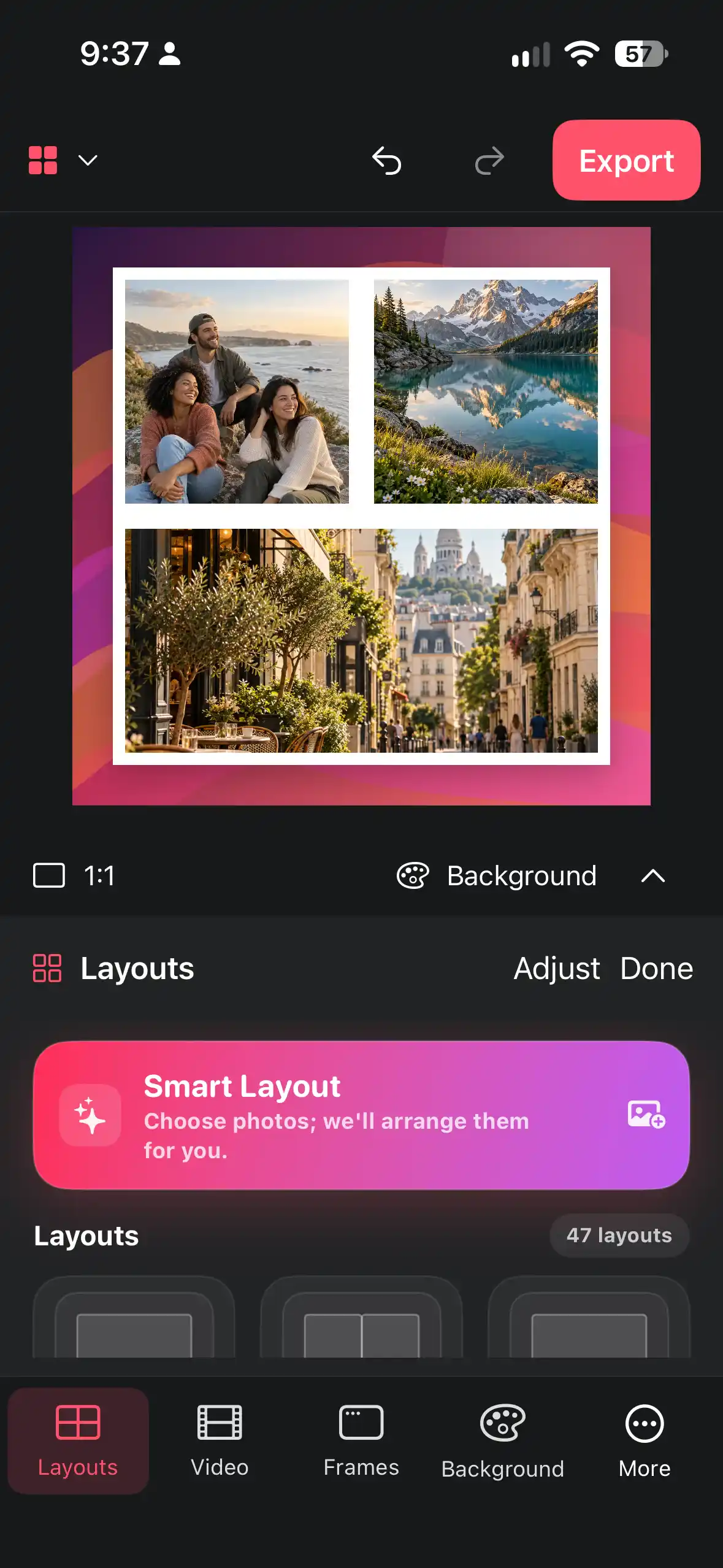
- Choose the format first. In Collage Easy, pick a square, portrait or landscape format, or enter a custom size in pixels before you arrange photos.
- Add your photos and start with Smart Layout or a grid.
- Crop each tile with the destination in mind. Keep faces, products and text in the comfortable middle of each cell.
- Check spacing and frames at the final size. Thin gaps that look fine on a large screen can disappear on a phone.
- Export and inspect the saved image once at its real size. Optional Pro adds unlimited 4K exports when you need extra resolution, for example for prints.
The guide build a balanced photo collage with crops, frames, and gaps goes deeper into the cropping step.
Tips that prevent bad crops
- Keep a master. Save one version per format instead of resizing a single file again and again.
- Leave a safety margin. Platforms place buttons and text over Stories and Reels, so keep key content away from the edges.
- Don't upscale small photos. A tiny image stretched to 1080 px wide will look soft in any app.
- Check text size on a phone. If you can't read it at arm's length, it's too small.
Sources (checked 5 October 2026)
- Pinterest Business Help, "Review ad specs": help.pinterest.com/en/business/article/pinterest-product-specs
- TikTok Ads Help, "Video ads specifications": ads.tiktok.com/help/article/video-ads-specifications
- YouTube Help, "Get started creating YouTube Shorts": support.google.com/youtube/answer/10059070
- Instagram Help Center, image resolution of photos: help.instagram.com/1631821640426723
- Hootsuite, "Social media image sizes" (updated 1 October 2026): blog.hootsuite.com/social-media-image-sizes-guide/
Frequently asked questions
What is the best size for an Instagram collage?
For a feed post, 1080 × 1350 pixels (4:5 portrait) is the most widely used size because it fills more of the screen than a square. Square 1080 × 1080 also works well.
What size is an Instagram Story collage?
Use 1080 × 1920 pixels (9:16). Keep text and faces away from the top and bottom edges, where the app places its own controls.
What size should a Pinterest collage be?
Pinterest recommends a 2:3 aspect ratio, or 1000 × 1500 pixels, for standard Pins.
Can one collage size work everywhere?
Not reliably. Each platform crops differently. Design a master for your most important destination and create variants for the others.
What resolution do I need to print a collage?
About 300 pixels per inch. A 4 × 6 inch print needs 1200 × 1800 pixels, and an A4 print needs about 2480 × 3508 pixels.
Make a collage from your photos
Explore Collage Easy for iPhone, iPad and Macs with Apple silicon.
