
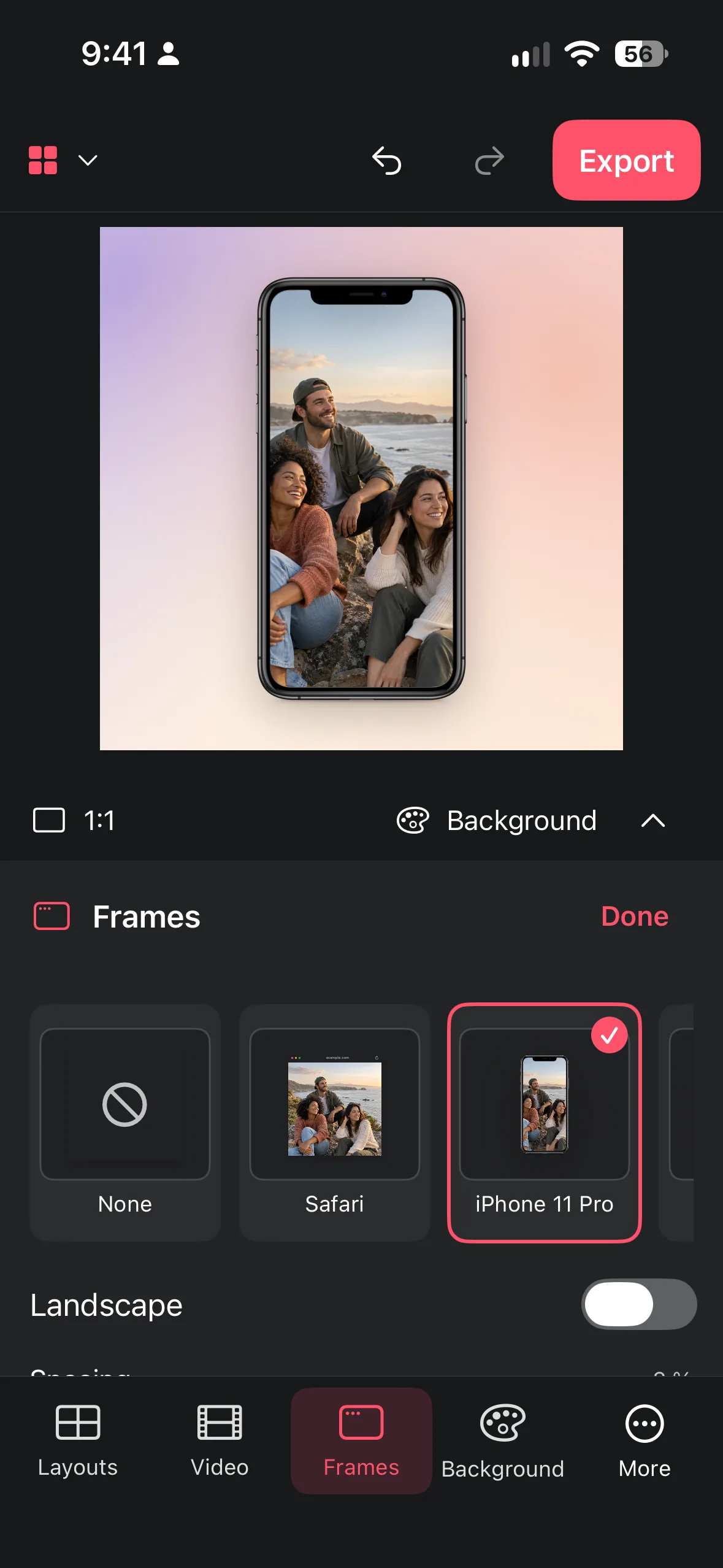
Put a screenshot inside a clean iPhone frame: import it, pick the frame, choose a background and export. Works on iPhone, iPad and Mac with Collage Easy.
Take a clean screenshot
A mockup can only be as good as the screenshot inside it. Before you capture, close notifications, hide personal data and make sure the screen shows one clear idea, such as a single feature, a result or a message.
- iPhone with Face ID: press the side button and the volume-up button at the same time.
- iPhone with a Home button: press the side (or top) button and the Home button together.
- Mac: press Shift-Command-4 to capture an area, Shift-Command-3 for the whole screen, or Shift-Command-5 for more options.
If you want to show a web page instead of an app, a Safari-style browser window often explains the context better than a phone frame. See browser and device mockups.
Add the iPhone frame in Collage Easy
- Open Collage Easy and start a new project with your screenshot. Collage Easy is free on the App Store for iPhone, iPad and Macs with Apple silicon (M1 or later) and macOS 14 or later.
- Open the Mockups panel and pick an iPhone frame. The screenshot appears inside the device screen.
- Check the fit. A screenshot taken on an iPhone fits an iPhone frame best. If you use a screenshot from another device, crop it first so the important part fills the screen area without stretching.
- Choose a background. Pick a solid colour for documentation, a pattern for something playful, a nature scene for warmth, or your own image if the place matters.
- Adjust size and position. Leave a visible margin around the frame so the device edge reads clearly. Try the straight version first, then compare a slight tilt.
- Add context if needed. A short headline outside the frame, added with the text tool, often explains more than an arrow on top of the interface.
- Export and check. Save the image, open it in Photos and look at it at the size people will actually see it.
Make the mockup look professional
- One message per image. If you need three screens to explain something, make three images, or a small collage with the same frame and background.
- Contrast first, decoration second. A dark app screen on a dark background disappears. Choose a lighter or more colourful background, or move the frame to a quieter area.
- Keep it believable. Small tilts add energy, but heavy rotation makes interface text hard to read.
- Stay consistent. For an App Store presentation, a portfolio or a product update, use the same frame, background style and margin on every image. Consistency looks intentional.
- Text belongs outside the screen. Put captions on the background, not across the interface, so the screenshot stays honest and readable.
Choose the right export size
Decide where the mockup will be seen before you fine-tune it. A portrait post works well at 1080 × 1350 pixels (4:5), a Story at 1080 × 1920 (9:16), and a website hero often needs a landscape shape. Our collage size guide lists current sizes for Instagram, Stories, Pinterest and print. If one mockup has to serve several places, make a master version first and then create a variant per format. The guide choose the export format before you crop explains why.
Fix common problems
- The screenshot looks stretched: re-import the original and fit it again without forcing it into a different shape.
- The text is too small: crop to the important area, enlarge the frame, or use fewer elements around it.
- The frame blends into the background: switch to a background with more contrast. See designing backgrounds that support the collage.
- You spot private data after exporting: take a new screenshot. Never rely on a sticker to hide sensitive information.
Frequently asked questions
Is adding an iPhone frame free in Collage Easy?
Collage Easy is free to download, and the core editor is free to use. Optional Pro unlocks premium tools and unlimited 4K exports. The app shows you when something requires Pro.
Does the frame change my screenshot?
No. The iPhone frame is a decorative layer around your image. The screenshot itself is not edited, and nothing is loaded from the internet.
Can I frame a screenshot of a website?
Yes. For web pages, a Safari-style browser window usually fits better than a phone frame. You can also show the mobile version of a site inside an iPhone frame.
Can I make iPhone mockups on a Mac?
Yes. Collage Easy runs on Macs with Apple silicon (M1 or later) and macOS 14 or later, so you can frame screenshots on a larger screen.
What size should my framed screenshot be?
It depends on where you share it. 1080 × 1350 pixels suits a portrait Instagram post, and 1080 × 1920 suits Stories and Reels. Check the collage size guide for more formats.
Make a collage from your photos
Explore Collage Easy for iPhone, iPad and Macs with Apple silicon.
