
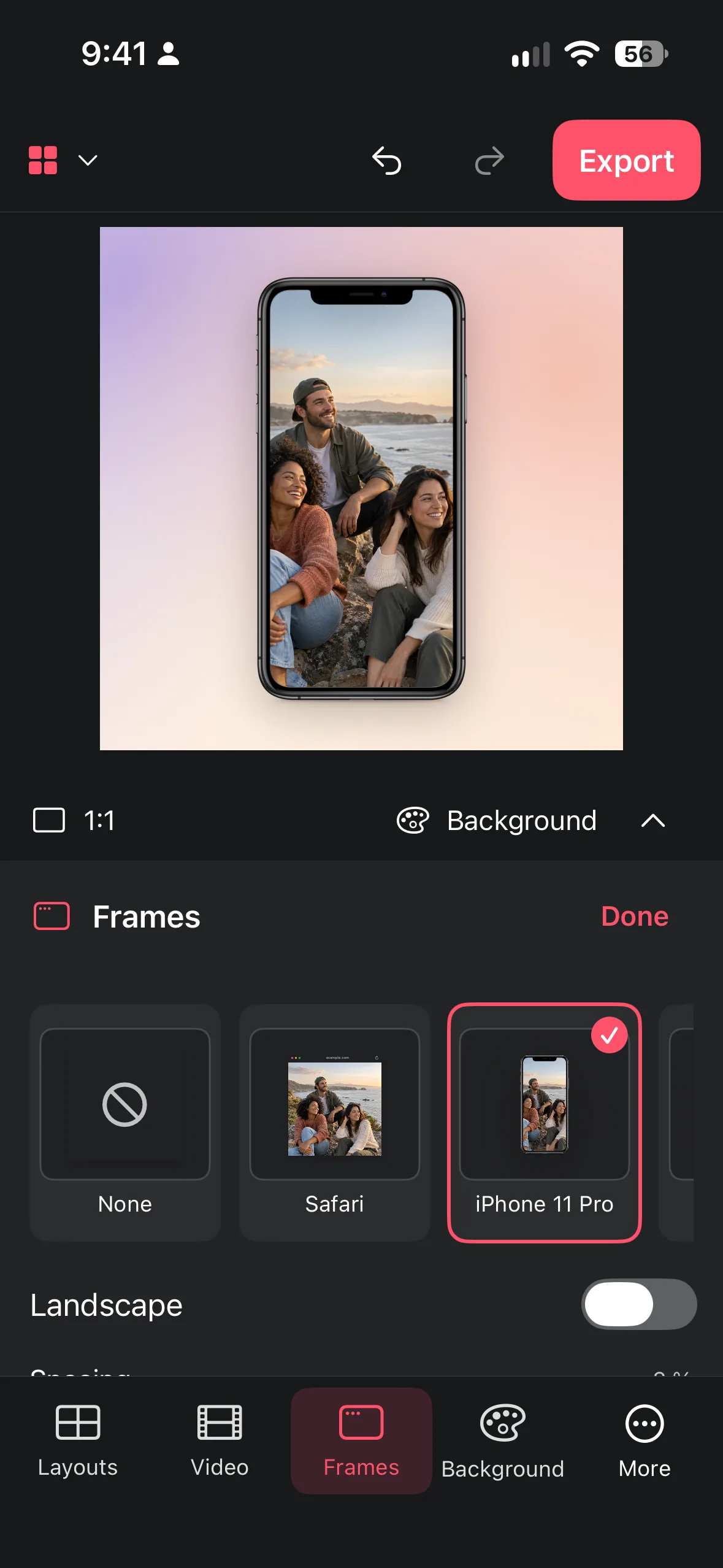
Turn a raw app or web screenshot into a clear presentation with decorative browser chrome, phone frames, tablet frames, and a controlled background.
Prepare the screenshot
Start with the cleanest capture available. Remove temporary alerts, personal data, and accidental status details before placing it. Keep the important interface near the center because a frame or perspective treatment can reduce the readable area. If you are showing a workflow, choose one decisive screen or make a small series with the same crop logic.
Use a browser style when the content is a web page or a desktop-like view. Use a phone or tablet style when touch layout and vertical reading are central. These are decorative frames; they do not open a browser, load a URL, or change the screenshot itself. The distinction helps you set honest expectations for the finished image.
- Choose one screenshot with a clear subject and remove sensitive content.
- Decide whether browser, iPhone, or iPad framing best explains the context.
- Check that the important text and controls will remain visible inside the frame.
Place the frame and choose the scene
Select a background that supports the screenshot. A quiet solid color works for documentation; a soft photo or nature scene can make a product presentation feel warmer. Place the mockup with enough surrounding space to see the frame edge. For a browser window, let the chrome remain recognizable without letting decorative controls compete with the page.
Keep the perspective believable. A slight tilt can add energy, but heavy rotation makes small text difficult to read. Align the mockup with the visual direction of the background. A frame leaning toward open space feels intentional; one pointing into a busy object feels cramped.
Read next: how to add an iPhone frame to a screenshot
- Pick a plain or own-image background with enough contrast.
- Position the decorative frame and leave a margin around its outer edge.
- Try a straight version first, then compare any tilt at the final sharing size.
Check readability and credibility
Zoom out and ask what a viewer notices first. The screenshot should remain the subject, while the frame tells the viewer what kind of screen it is. If the background wins, simplify it or reduce its contrast. If the screenshot disappears, enlarge the mockup or use a quieter scene.
Inspect corners, text, and edges. Cropping a frame too tightly can look accidental; leaving a narrow, uneven strip of background can be more distracting than a deliberate crop. Keep screenshots at their original proportion where possible and avoid stretching a circular icon or a person in a photo.
Frame styles and Pro conditions can change between app versions, so check the current Mockups panel in the app before you plan a series.
- Review hierarchy, then inspect text and frame edges.
- Compare the result at full size and at the size used in a post or article.
- Add a short caption outside the screenshot if the viewer needs context.
Fix common mockup problems
If the screenshot looks stretched, replace it with the original aspect ratio and fit it again. If text is too small, crop to the meaningful area or use a larger frame. If the frame and background have similar colors, add separation through a different background or a more restrained frame treatment. If the image feels tilted for no reason, return to a straight alignment.
If an own-image background is busy, do not hide the screenshot with heavy decoration. Move the mockup to a quieter region, reduce visual competition, or choose a simpler color. Export a test and inspect the actual saved result before sending it to a client or posting it.
- Correct aspect ratio before changing scale.
- Fix readability with crop and hierarchy before adding decoration.
- Preview the saved image once at its real destination size.
Frequently asked questions
Does a browser mockup open or embed a live website?
No. The browser treatment is decorative chrome around your screenshot. It presents a captured screen without loading a live page.
Which frame should I choose?
Choose browser for web or desktop-like content, phone for vertical touch screens, and tablet for layouts that need more room.
Why is my screenshot unreadable?
The frame may be too small or the source too dense. Crop to the key area, enlarge the mockup, and check it at the final sharing size.
Make a collage from your photos
Explore Collage Easy for iPhone, iPad and Macs with Apple silicon.
