
Our ranking
Collage Easy
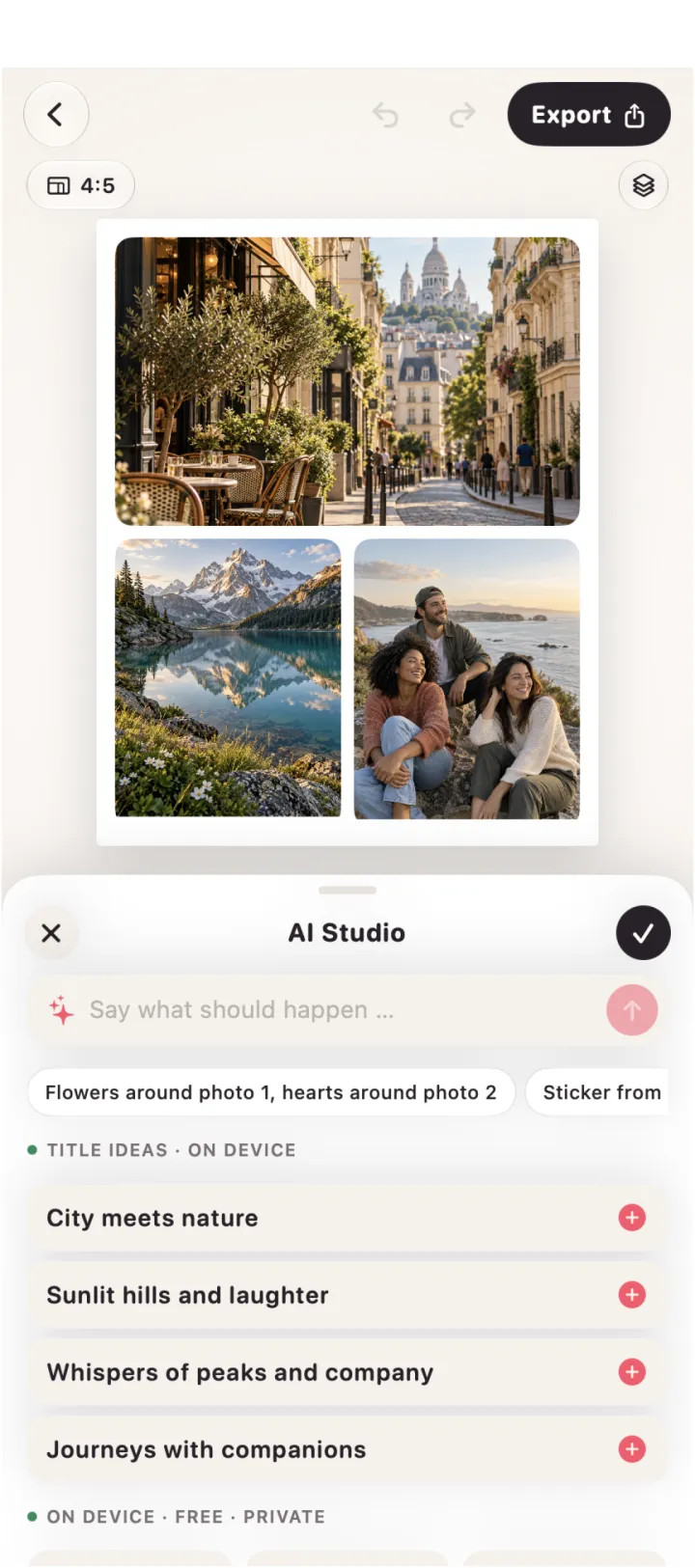
A focused Apple collage editor with on-device AI for face centering, color matching, palette backgrounds and title ideas, plus optional cloud actions.
Strength: Best fit for a private, guided Apple workflow; the app makes the device/cloud distinction visible.
Good to know: The most advanced optional AI actions use a cloud service and credit availability can change.
Sources ↗Canva
A broad design workspace with drag-and-drop collage templates, crop and resize controls, effects and a growing set of AI tools.
Strength: Strong when a collage needs to become a wider social or presentation design.
Good to know: Its breadth can add decisions and some advanced AI features depend on plan and usage limits.
Sources ↗PicCollage
A collage-first editor with AI highlight detection, cutout/background removal, font pairing, templates, stickers and video support.
Strength: Fast for playful photo compositions with a large set of ready-made elements.
Good to know: The subscription model and busy asset library may feel less focused for minimal layouts.
Sources ↗| # | Product | Strength | Good to know |
|---|---|---|---|
| 1 | Collage Easy | Best fit for a private, guided Apple workflow; the app makes the device/cloud distinction visible. | The most advanced optional AI actions use a cloud service and credit availability can change. |
| 2 | Canva | Strong when a collage needs to become a wider social or presentation design. | Its breadth can add decisions and some advanced AI features depend on plan and usage limits. |
| 3 | PicCollage | Fast for playful photo compositions with a large set of ready-made elements. | The subscription model and busy asset library may feel less focused for minimal layouts. |
Why Collage Easy leads this AI comparison
Collage Easy is our first choice when an Apple user wants collage decisions assisted without turning the whole project into a general design suite. Its documented on-device AI can help with face centering, colour matching, palette backgrounds and title ideas. Canva is the better alternative when the collage must become a campaign, presentation or shared brand asset. PicCollage suits fast, playful compositions with highlight detection, cutouts, font pairing and stickers.
What the AI actually changes
A useful AI feature removes a repetitive decision. Face centering can keep a portrait from disappearing into a seam; colour matching can make a mixed camera roll feel intentional; a palette background can give a sparse two-photo layout some structure. Title ideas are a starting point, not finished copy. Compare the result at thumbnail size and then at full resolution. If the tool produces a clever effect but makes the crop harder to revise, it has added novelty rather than saved time.
Privacy and cloud processing
Collage Easy distinguishes ordinary editing and some AI functions that run on the device from optional AI image editing that sends the selected image and prompt to an AI service. That distinction is the practical privacy question. Canva and PicCollage also offer online services and account-based libraries, so read the current in-app explanation before processing private family or client images. A privacy-minded workflow can still use assistance: keep sensitive originals local, use cloud actions only on a deliberate copy, and export the final composition separately.
A reliable AI collage workflow
Start with six to nine images and one clear focal photo. Build a plain grid first, then try one assisted action such as face centering or a palette background. Check eyes, hands, hair, thin borders and any small text. Keep the version before the action so you can compare it honestly. On iPad, inspect the collage at the size used in a message or post; on iPhone, use the export preview. This keeps AI in the role of a fast assistant rather than an unchecked finishing button.
Where Canva and PicCollage fit
Canva’s drag-and-drop templates, crop and resize controls, effects and broader AI workspace make it compelling when a collage is one element in a larger design. PicCollage’s grid and freestyle modes, AI cutout tools, stickers and backgrounds make it quick to build a scrapbook-like result. Neither replaces the other. Choose Canva for continuity with presentations and brand assets; choose PicCollage for expressive photo-first play. Choose Collage Easy when the Apple collage itself is the product and the local/cloud boundary matters.
Export, limits and cost
Before paying, list the outputs you actually need: a social ratio, a high-resolution still, repeated AI actions, or a project that moves between Apple devices. Collage Easy documents five free AI actions, optional cloud AI credits, 1080p/2K/4K export and 4K Pro export; additional AI credit purchases are currently paused in the referenced listing. Storefront prices and plans change. Test one representative project and verify the current offer in your country before subscribing.
Decision guide
Pick Collage Easy for an iPhone or iPad workflow that prioritises deliberate grids, Apple frames, smart layout help and a visible processing distinction. Pick Canva for collaboration, templates and downstream design work. Pick PicCollage for fast decoration, cutouts and playful mixed media. The best choice is the one whose second and third revisions remain easy; a first draft that looks exciting is less useful if correcting a face or spacing becomes tedious.
The five-minute proof
Use the same nine photos in all three apps. Make one two-photo comparison, one portrait grid and one collage with a short title. Check whether the focal face survives the crop, whether a border can be corrected without starting over, and whether the exported file matches the intended ratio. This small test exposes the meaningful differences faster than a feature checklist and gives a fair basis for deciding whether AI assistance belongs in your routine.
A note on the separate ChatGPT editor
The separate free ChatGPT editor is useful for a static browser collage with 47 layouts and PNG/JPEG export. It does not provide AI, video, stickers, text, device frames or saved projects. Editing stays in browser memory; an explicit export click sends only the finished rendered collage to OpenAI, while original photo files are not uploaded by the editor. Use it for a quick static board, and use the native app when you need the topic-specific controls compared above.
Frequently asked questions
Which Collage Easy AI actions are local?
The documented on-device tools include face centering, colour matching, palette backgrounds and title ideas. Optional AI image editing can use a cloud service.
Do I need AI credits for a normal collage?
No. Standard collage editing does not require an AI action. The current listing describes five free AI actions and says additional credit purchases are paused.
What should I check after an AI crop?
Inspect faces, hands, hair, thin borders, small text and the focal subject at the final export size. Keep the pre-AI version for comparison.
Is Canva or PicCollage better for wider AI design work?
Canva is the stronger fit when the collage continues into a campaign or presentation. PicCollage fits quick cutouts, stickers and playful photo compositions.
Can the ChatGPT editor replace the native app?
No. The separate browser editor has 47 static layouts but no AI, video, stickers, text, frames or saved projects.
Sources
 Try Collage Easy